

If you need technical support, submit a technical support request ticket. (See Contact Us)
Obtaining and Analyzing the Debug Logs
Synchronizing seems slow or comes to a halt over time
App is using too much memory, why?
Debugging Blocked Transactions
Causes of Blocked Transactions
Android App Store Submission Issues
Subscription Server Overload (503 Errors)
iOS mDNS Stale Record Crashes
Discovery works but LAN sync fails with OS error 92
Still stuck?
SDK crash: mDNS index out of bounds (4.11 and earlier)
Obtaining and Analyzing the Debug Logs
To troubleshoot a peer-to-peer data sync issue, first determine the cause of the issue by obtaining and analyzing the database error and warning messages captured in the debug logs.Setting the Logs to Debug Level
As demonstrated in the following snippet, obtain the database debug logs before Ditto is initialized so that any potential issues related to the file system access and authentication background tasks that run during initialization are tracked. You want to begin gathering logs before Ditto is initialized in order to capture any potential issues with those two background tasks.Authentication
For server connection mode with custom authentication identities, the first thing that Ditto needs to do is authenticate to the Big Peer. Confirm that all devices share the same AppID by verifying that theapp_id log line contains your AppID:
JSON
JSON
JSON
Incorrect APP ID
If the appID or token are incorrect, the following displays in the debug logs:JSON
JSON
- Log in to the Portal
- Go to your App.
- Copy the AppID and Playground Token and use it in your Ditto initialization.
Outdated certificate
JSON
ditto.auth.logout() and reconnect to the Internet to get a new certificate. Alternatively, you can clear the local cache by reinstalling the mobile application or clearing the local persistence directory.
Authentication server unavailable
Shell
Shell
Shell
Ditto closing prematurely
If you see that Ditto is unable to sync, and see the log lines below, it’s possible that your ditto instance is being deallocated before it is able to synchronize with other peers. Ensure that the ditto instance is initialized and saved in a global variable that is long-lived for the duration of the application.Shell
Common mistakes
authenticationExpiringSoonandauthenticationRequiredboth need to be implemented according to the sample code.- Since callback objects are only invoked when Ditto initializes and the client authentication certificate expires, do not create subscriptions inside callbacks.
- Keep a strong reference to the AuthClient for the duration of the Ditto object, otherwise the auth handler will become garbage collected at an inappropriate time.
- Verify that your webhook provider name is correctly copied in the Ditto portal.
- The provider name given to the Ditto Client must match a provider name in the Portal (e.g.,
my-auth).

Is your AuthClient becoming garbage collected?
Ensure that you keep a reference to the AuthClient in scope for the duration that Ditto is also active. You should attach the dittoAuth variable to the object so it does not get garbage collected. For example:C#
Syncing With Big Peer
A small peer syncs with the Big Peer using a WebSocket connection. The debug logs will tell you each step to create a successful WebSocket connection to the big peer. First, the peer will discover the big peer and you’ll see aDiscovered event.
JSON
ConnectionEstablished event:
JSON
StreamFailed or ConnectionEnded or any errors related to WebSocket connection with the Big Peer, there is likely an error in the Big Peer subscription server. For troubleshooting help, contact Ditto support.
Subscription Server Overload (503 Errors)
If Small Peers repeatedly fail to connect to the Big Peer with503 Service Unavailable errors, the Big Peer subscription server may be overloaded. In the debug logs, you will see the connection cycle repeatedly through Discovered → ConnectionEstablished → ConnectionEnded with errors like the following:
JSON
WHERE clauses can exceed the subscription server’s processing limits. This is more likely with large collections (tens of millions of documents) where complex queries must evaluate against many documents. Programmatically generated subscription queries are a frequent source of excessive nesting.
What to check:
- Review the subscription queries in your debug logs (see the Subscriptions section above) for queries with many nested elements in their
WHEREclauses. - Look for subscription queries generated programmatically that may produce deeply nested predicates.
- Check whether the 503 errors correlate with specific subscription query registrations — the issue may begin when a particular subscription is created.
- Simplify subscription query predicates — flatten nested conditions where possible.
- If you cannot identify which query is causing the issue, contact Ditto support with your debug logs so engineering can investigate server-side.
- Ensure you are running the latest Big Peer version, as improvements to subscription server stability are ongoing.
Corrupted certificate
If your certificate chain is corrupted, you will see the following.JSON
JSON
phy started.
The pkSOME_BYTES identifier displays the public key to the Big Peer instance that
a Small Peer WebSocket connection has temporary sync access.
Note that the following snippet is merely an example; the pkSOME_BYTES identifier is not a guaranteed static variable.
JSON
JSON
Permissions and Subscriptions
For the Small Peer to have an active subscription to read and write to other peers, it must first be authorized access by a Big Peer. If the Small Peer does not have permissions to access database replication, it cannot subscribe to its collections to read and write.Permissions
Given this, before you check the Small Peer’s active read-write subscriptions, confirm that the Small Peer has permissions to access the database.JSON
JSON
Subscriptions
Now that default permissions are verified, confirm that the Big Peer is connected to a Small Peer and the local-to-global database replication task is running. Ditto prints a list of all the queries that the peer is currently subscribed to.JSON
__) before the collection name; for example, the following default internal __presence subscription:
JSON
JSON
JSON
JSON
- Do your permissions match your subscriptions? If you do not have permission to subscribe to data, it will not sync to the device.
- Are you subscribing to what you expect to see?
- Do you have more subscriptions than you expect to have?
- Do your live queries match the subscriptions?
Query Parsing Errors
ParseError can be printed in the debug logs when there is a problem with your query. For example, if you create a subscription in Swift that is the empty string, you will see a ParseError in the logs.
Writes
If a Write is made to the local database, the following debugging messages appear:JSON
JSON
JSON
JSON
JSON
Did your device connect to the internet?
Server authenticated applications must connect to Ditto Server first before going offline.Do you have a firewall or proxy enabled that is blocking Ditto’s connection to the Big Peer?
A proxy may either block connections or cause errors in the log by substituting its own TLS certificate:invalid certificate: UnknownIssuer. If you see this log message you will either need to get Ditto unblocked or add the CA certificate to the Small Peer’s trusted certificate store.
Verify that you can reach the following endpoints (replace REPLACE_ME_WITH_YOUR_URL_HOST with the host of your URL from the Ditto Portal, Connect via SDK). You should see output similar to below:
JSON
JSON
Connection issues
If you are unable to see connections over particular transports, first ensure you are following the SDK Setup guide for your language.Swift
Kotlin
JavaScript Web | Node.js | React Native
Bluetooth on Linux
Bluetooth
- Turn Use Location on
- Turn Bluetooth Scanning on
- Are permissions set correctly? See
- Go to your OS-level permissions for Bluetooth and clear the app permissions for your application.
- Delete the app, install it again, and open it. Does it ask for Bluetooth permissions?
Apple Wireless Direct Link, P2P-Wifi, Wifi Aware
- Go to your OS-level permissions and clear the app permissions for your application.
- Delete the app, install it again, and open it. Does it ask for location permissions?
- If you are using a custom
Local Area Network (LAN)
- Are permissions set correctly? See
- Are both devices connected to the same WiFi network?
- Check your router settings and see the
- If your device has VPN enabled, then peers can fail to communicate. Ensure that your VPN supports UDP multicasting.
Debugging Blocked Transactions
This section only discusses blocked transactions on native platforms (e.g. iOS, Android, Windows, Linux). Ditto in web browsers operates sufficiently differently and isn’t covered here.
- Unresponsive UI: an interaction might try to update a document, but is blocked by an existing write transaction
- Slow sync: new updates cannot be integrated into the store, since they’re blocked by another write transaction
Did your certificate expire and fail to refresh?
When usingOnlineWithAuthentication,
Send a POST request with a JSON stringified body to your server to ensure that Ditto Server successfully sends POST requests to your authentication server.
- authenticationExpiringSoon
- Since callback objects are only invoked when Ditto initializes and the client authentication certificate expires, do not create subscriptions inside callbacks.
- Keep a strong reference to the AuthClient for the duration of the Ditto object, otherwise the auth handler will become garbage collected at an inappropriate time.
Verify that your webhook provider name is correctly copied in the Ditto portal
The provider name given to the Ditto Client must match a provider name in the Portal (e.g., my-auth).Is your AuthClient becoming garbage collected?
Ensure that you keep a reference to the AuthClient in scope for the duration that Ditto is also active. You should attach the dittoAuth variable to the object so it does not get garbage collected. For example:pseudocode
Bluetooth
- Turn Use Location on
- Turn Bluetooth Scanning on
- Are permissions set correctly? From SDK Setup Guides, refer to the installation article for your language
- Go to your OS-level permissions for Bluetooth and clear the app permissions for your application.
- Delete the app, install it again, and open it. Does it ask for Bluetooth permissions?
- Android only: are you calling
ditto.refreshPermissions()?
Apple Wireless Direct Link, P2P-Wifi, Wifi Aware
- Are permissions set correctly? (From SDK Setup Guides, refer to the installation article for your language)
- Go to your OS-level permissions and clear the app permissions for your application.
- Delete the app, install it again, and open it. Does it ask for location permissions?
- If you are using a custom
TransportConfig, make sure you have enabled all peer-to-peer transports usingenableAllPeerToPeer().
Samsung devices do not resume Wi-Fi access-point scanning
On certain Samsung Galaxy devices, an active Wi-Fi Aware connection can prevent the device from scanning for and joining standard Wi-Fi access points. Wi-Fi Aware connections themselves remain stable, but the device does not automatically rejoin an access point after moving out of range and back into range. This behavior was reproduced with a standalone Wi-Fi Aware test app that does not use Ditto, and Google Pixel control devices did not reproduce it. It stems from Samsung’s Wi-Fi software, not from the Ditto SDK.Symptoms
- Wi-Fi Aware connections function normally and remain stable.
- The device stops scanning for Wi-Fi access points while Wi-Fi Aware is active: existing AP connections are maintained, but new connections cannot be established.
- The device does not automatically reconnect to an access point after moving out of range and back into range.
- The issue can also occur when roaming between access points in multi-AP environments.
- Opening Android Wi-Fi settings temporarily restores scanning, but automatic scanning stops again while Wi-Fi Aware remains active.
Affected devices and fixed versions
The following Samsung models are confirmed to be affected:
Other Samsung devices with similar Qualcomm Wi-Fi chipsets may also be
affected. Devices with dual-radio (DBS) Wi-Fi chipsets and non-Samsung devices
such as Google Pixel are not expected to exhibit this behavior. See
Wi-Fi Aware chipset considerations
to identify your device’s chipset.
To check the software on a device, open Settings → About device and compare
the Android version and Build number (for example,
X350XXU2AYH1)
against the table above.
How to reproduce
- Connect two devices to the same Wi-Fi access point.
- Establish a Wi-Fi Aware connection between them, using your Ditto app or a Wi-Fi Aware test application.
- Move both devices out of range of the access point and wait for the Wi-Fi connection to drop.
- Move the devices back into range of the access point.
hdd_register_interface: register_netdevice(aware_data0) failedDevice mode 16 invalidwlan_cm_disable_rso: ... Disable roaming - requestor:NDP connection
Resolution and workarounds
Update to fixed firmware (recommended). Install the Samsung firmware or Android version listed in the table above. These updates change the Wi-Fi scanning rules that apply while Wi-Fi Aware is active, after which the failure to scan and rejoin no longer reproduces. Disable Wi-Fi Aware until fixed firmware is installed. Update your Ditto transport configuration so that the Wi-Fi Aware transport is disabled:Kotlin
Pinning your access point to the Wi-Fi Aware channel (the SCC mitigation
described in
Wi-Fi Aware chipset considerations)
does not prevent this scanning suppression, which is controlled by Samsung’s
Wi-Fi driver configuration rather than by channel alignment.
Local Area Network (LAN)
- Are permissions set correctly? From SDK Setup Guides, refer to the installation article for your language)
- Are both devices connected to the same WiFi network?
- Check your router settings and see Lan Optimizations
- If your device has VPN enabled, then peers can fail to communicate. Ensure that your VPN supports UDP multicasting.
Discovery works but LAN sync fails with OS error 92
Use this runbook when peers discover one another, but LAN data sync does not start, the remote peer advertises no usable IPv4 address at Ditto startup, and logs report one of these errors while attempting an advertised IPv6 address:Protocol not available (OS error 92)/ENOPROTOOPTEPROTONOSUPPORTorEAFNOSUPPORTwhile creating an IPv6 socket
Why discovery can succeed while sync fails
mDNS discovery advertises the IP addresses assigned to a peer. Ditto may race or repeatedly try the advertised IPv4 and IPv6 addresses—similar to Happy Eyeballs—so that a working address family can succeed. Some devices or customized Android builds block IPv6 socket connections even though they can receive mDNS records containing IPv6 addresses. If the remote peer does not have a usable IPv4 address available for advertisement, the devices can discover each other without having a compatible address for the LAN TCP connection.Diagnose the address-family mismatch
1
Capture debug logs from startup
Enable debug logging before initializing Ditto. Confirm that connection
attempts fail with
OS error 92, ENOPROTOOPT, EPROTONOSUPPORT, or
EAFNOSUPPORT.2
Verify mDNS discovery and both peers' addresses
Capture mDNS traffic to verify that the remote peer advertises its service.
Check whether both devices currently have an IPv4 address on the same LAN, then
confirm whether the remote peer’s mDNS response omits that address or advertises
one that is unusable from the affected device. If the response includes a
usable IPv4 address, continue diagnosing another cause. The
network deployment guide
shows how to inspect mDNS responses with Wireshark.
3
Confirm the device's IPv6 behavior
Check whether the device OS, firmware, or device-management policy disables
IPv6 sockets. An IPv6 address in an mDNS response does not prove that the
receiving device can open an IPv6 connection.
Resolve the issue
Prefer correcting the device or network configuration so every peer has a usable address family. If IPv6 cannot be enabled on the affected device, bind Ditto’s LAN TCP listener to the IPv4 wildcard address,0.0.0.0. This limits
the listener and its mDNS advertisement to IPv4:
- In the transport configuration, explicitly enable TCP listening
(
enabledorisEnabled, depending on the SDK). - Set the TCP listen interface address (
interfaceIP,InterfaceIp, or equivalent) to0.0.0.0. Keep the existing port, or use port0to let the SDK choose one. - Apply the configuration before starting sync.
- Confirm that the peer now advertises an IPv4 address and that LAN sync begins.
Slow Initial Sync from Ditto Server
When initial sync from the Ditto Server (Big Peer) takes significantly longer than expected — for example, 15–20 minutes or more — the issue may be caused by server-side resource constraints rather than client-side problems.Symptoms
- Initial sync from the server takes significantly longer than expected, but subsequent syncs are fast
- Intermittent authentication failures (
AuthClient: failed to obtain a certificate) that resolve on retry - Debug logs show repeated offset retransmission or
StreamFailed/ConnectionEndedevents during initial sync
Common Causes
- Disk IOPS constraints: The Ditto Server instance may have insufficient disk I/O throughput to serve large initial sync payloads under load. This is more common on shared cloud instances serving multiple apps.
- Load balancer issues: In rare cases, a transport pod behind the load balancer may silently drop connections while reporting healthy status, causing sync retries and delays.
Resolution
- Set a routing hint: If your app uses multiple sites or locations, set a
routingHintin your transport config to help the server co-locate related peers. This reduces overhead during initial sync. See Optimizing Server Performance for code samples. - Use routing hints alongside sync subscriptions: Setting a routing hint is especially important when the Big Peer is resource-constrained. The routing hint helps the server prioritize and route sync traffic efficiently.
- Contact Ditto support: If symptoms persist after setting routing hints, the server instance may need an IOPS or memory allocation increase. Contact Ditto support with your app ID and a description of the sync delays.
These server-side resource constraints do not affect peer-to-peer sync between Small Peers. If devices sync quickly with each other but slowly from the server, this is a strong indicator of a server-side issue.
iOS mDNS Stale Record Accumulation
On iOS, if a device disconnects abruptly (for example, due to a crash, power loss, or sudden loss of Wi-Fi), it may fail to withdraw its mDNS records. Each unclean disconnect can leave behind stale IPv6 link-local address records. Over time, these stale records accumulate, and other peers attempt to connect to all advertised addresses — including the stale ones. When many stale records build up for a single peer, the resulting flood of failed TCP connection attempts (each returningNo route to host / OS error 65) can cause excessive resource consumption. On memory-constrained iOS devices, this can lead to app crashes.
Symptoms:
- Repeated
No route to host(OS error 65) errors in debug logs - High rate of failed connection attempts (hundreds per minute)
- App crashes on lower-specification iOS devices, especially during peak usage
- One peer showing an unusually large number of IPv6 link-local addresses in mDNS records
1
Reboot affected devices
Reboot the device that is advertising stale mDNS records. This flushes the stale mDNS cache and forces a clean re-announcement.
2
Reduce TCP connect timeout
If the issue recurs, reduce the TCP connect timeout so that connection attempts to stale addresses fail faster instead of tying up resources. Set the system parameter before starting sync:This sets the timeout to 5000 milliseconds (5 seconds), allowing the SDK to abandon unreachable addresses more quickly.
3
Upgrade the SDK
Upgrade to SDK version 4.14.4 or later, which includes mDNS stability improvements that reduce stale record accumulation.
Synchronization seems slow, or comes to a halt over time
- Ensure that you are only creating a fixed number of live queries, with a smaller amount of data.
- Avoid using
LIMITorORDER BYwith mutable fields in subscription queries. See Stateful Subscription Performance Guidelines for details. - Evict irrelevant data. You can evict all irrelevant data once per day
- Turn off verbose logging. Verbose logging can slow down replication considerably, especially with thousands of documents. Hence, it could look like that sync is stalling, but that can be indistinguishable from the logging mechanism slowing down ditto because it is trying to write too many lines.
- Look at the size of your ditto directory. Is it very large? Large databases will be slower. Try to query less data.
App is using too much memory, why?
- Use profiling tools for your platform to better understand where the memory leak may be occurring.
- Ensure you are not loading too much data into memory at once. Ditto is designed to work with large datasets, but you should only load the data you need at any given time.
- A common issue we see in reactive apps is a failure to dispose of resources as
conditions change. Your app could create a large accumulation of publishers that
infinitely grow. Every liveQuery and subscription in ditto must be explicitly
stopped using the
stoporcancelAPI. See syncing data for more information.
Debugging Blocked Transactions
This section only discusses blocked transactions on native platforms (e.g. iOS, Android, Windows, Linux). Ditto in web browsers operates sufficiently differently and isn’t covered here.
- Unresponsive UI: an interaction might try to update a document, but is blocked by an existing write transaction
- Slow sync: new updates cannot be integrated into the store, since they’re blocked by another write transaction
What is a “blocked” transaction?
At any given time, there can be only one write transaction. Any subsequent attempts to open another write transaction will become blocked until the existing write transaction finishes.Read vs. Write Transactions
Read transactions operate differently to write transactions. Read transactions cannot be blocked and can run in parallel with write transactions. Read transactions don’t block each other, don’t block write transactions, and aren’t blocked by write transactions. If a write transaction is blocked, Ditto will log a message with increasing severity every 10s.
To see these logs in the database, it’s important to have a minimum log level set. Transactions that are blocked for over 2 minutes should always be visible in the logs.
If INFO level is used, then INFO, WARN, and ERROR messages will all be included in the logs. This means any write transactions blocking for more than 30s should always be visible in the logs.
Reading the Logs
If a write transaction is blocked, the device logs will look something like the following. In this example we can see a write transaction was blocked for a total of 150s (or 2.5 minutes).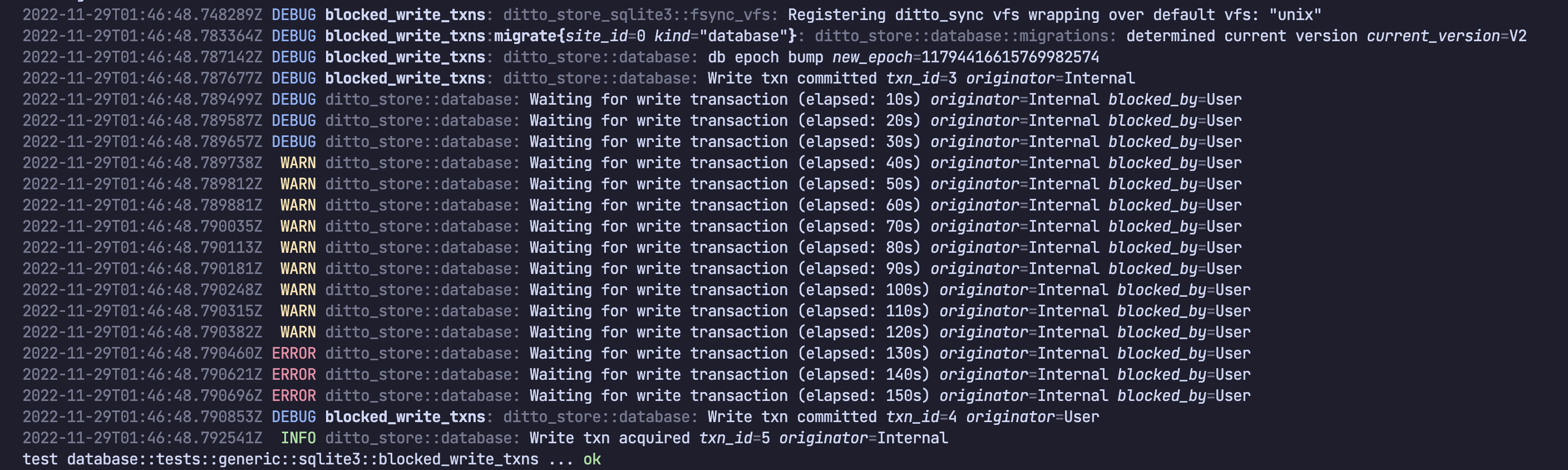
Originators
The three values you’ll see for originator and blocked_by are:Causes of Blocked Transactions
This section presents a few example blocked transaction scenarios, how they would appear in logs, and what they might mean.User blocks User
An application might block its own write transactions by performing multiple writes at the same time in different places. If one is slow (perhaps it does too much work, or perhaps it reaches out to external APIs, etc.) then the other write transactions will block until it finishes.SDK crash: mDNS index out of bounds
Symptom: The SDK crashes with a panic containingindex out of bounds in the mdns_sd library stack trace. The crash typically occurs shortly after calling startSync().
Cause: SDK versions 4.11 and earlier included an edge-case bug in the underlying mDNS (multicast DNS) library. Malformed mDNS packets broadcast by non-Ditto devices on the local network (for example, certain IoT devices or network appliances) could trigger an out-of-bounds array access in the mDNS parsing code, causing the SDK to panic.
Fix:
1
Upgrade the SDK
Upgrade to Ditto SDK 4.12 or later (or SDK v5), which includes the fix for this mDNS parsing bug.
2
Investigate the network environment
If you cannot upgrade immediately, identify and isolate any devices on the local network that are broadcasting malformed mDNS packets. Recent additions of IoT devices, printers, or network appliances are common sources.
Android App Store Submission Issues
Google Play Store 16KB Page Size Rejection
Starting in November 2025, Google Play requires all native libraries (.so files) in Android apps to be aligned to 16KB memory page sizes. If your app bundles an older version of the Ditto SDK, Google Play may reject your submission with an error similar to:
This release is not compliant with the Google Play 64-bit requirement or the 16 KB page size requirement.Solution: Upgrade to one of the following SDK versions:
- React Native SDK 4.14.4 or later (v4 line)
- React Native SDK 5.0.0 or later (v5 line)
Other Ditto SDK platforms (Kotlin, Swift, etc.) with Android targets may also require 16KB alignment. Check the release notes for your platform to confirm which version includes the fix.